런치큐@launchcurator
Prisc, edit cursors and audio even after screen recording is finished
When recording a 1-minute video to introduce a new feature, there are times when I play it back and realize the mouse cursor was too small or the buttons I clicked weren't visible. Sometimes the explanation is perfect, but a stray system notification sound makes me wonder whether to record it all over again or open an editor.
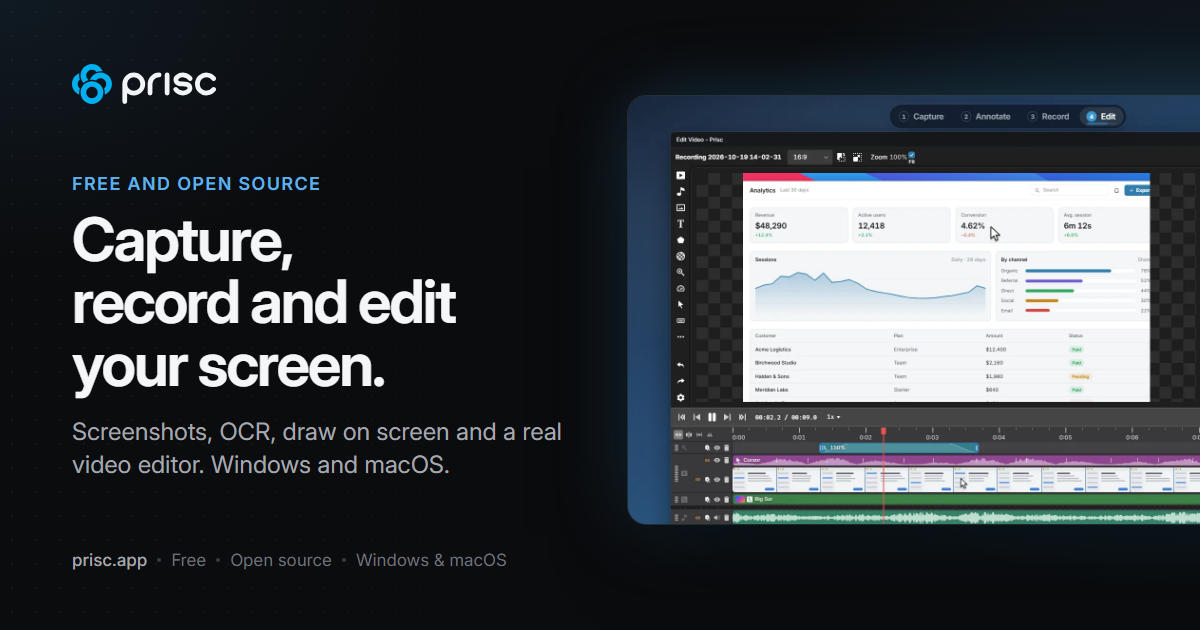
Prisc is an open-source tool for Windows and macOS that combines screen capture, recording, and image/video editing into one app. If you frequently create short product demos or how-to videos, the ability to edit after recording is what makes this tool stand out.
Edit your cursor and audio even after the recording is done
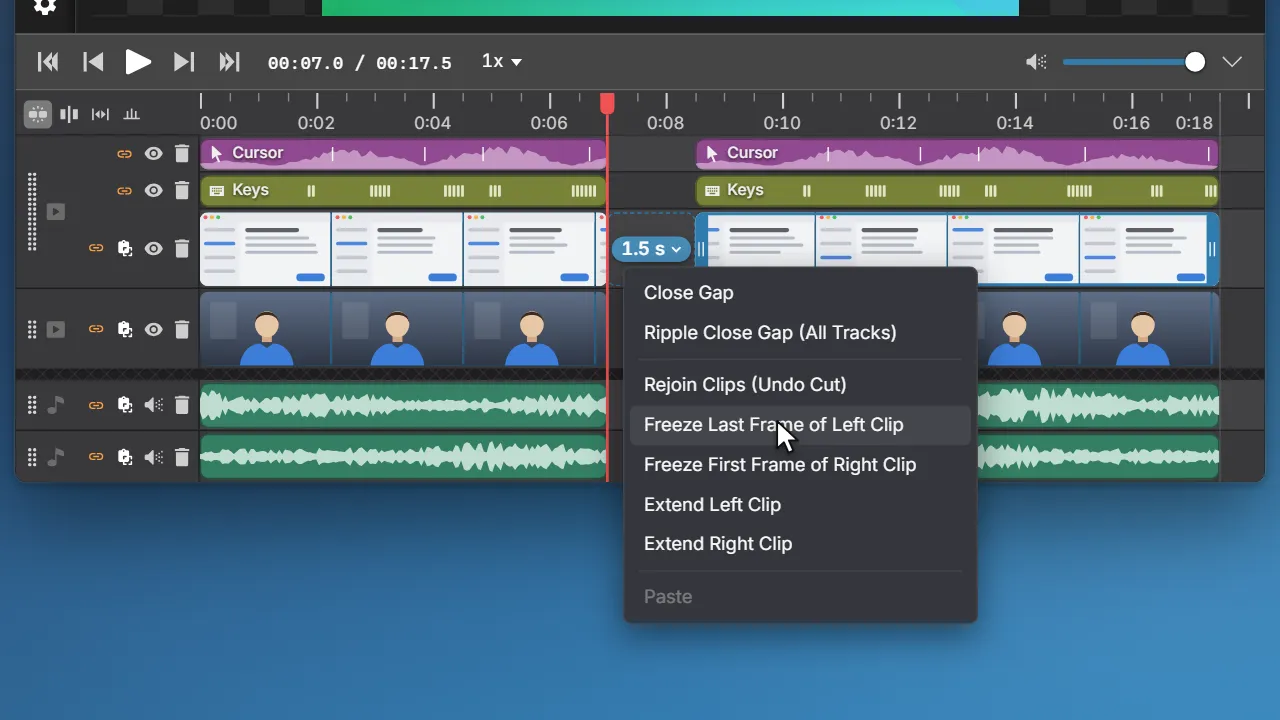
You can record your screen, webcam, microphone, and system audio onto separate tracks. In a video editor, tracks are the layers aligned along the timeline. For instance, you can keep your voiceover while muting system notification sounds, or choose to show your webcam feed only during specific segments.
Mouse cursors and key presses aren't just baked into the video; they are recorded as separate data. This allows you to change the cursor appearance or display keyboard shortcuts on screen after you've finished recording. You can zoom in on clicks and trim out loading times, making it much easier for viewers to follow along.
When you don't need a full video, a single screenshot is enough
If a question only requires pointing out a couple of spots in the settings, there's no need to make a video. You can capture a region or window, add arrows and numbers, blur out sensitive info, and copy it to your clipboard. Use cases vary: a single screenshot for reporting a bug, or a short video showing a sequence of clicks for onboarding.
Start with a 20-second feature demo
Try recording a short clip of just the process from clicking a button to seeing the result. Zoom in on the click, trim out the waiting time, and see if the ability to manage audio tracks makes this app a good fit for your workflow. Conversely, if you only occasionally need simple screenshots, your operating system's built-in tools might be enough.
The 5.1.1 release, published on November 5th, is available for Windows 10+ and macOS 13+. While the app works on Intel Macs, text recognition and AI video effects require Apple Silicon on macOS. Per official documentation, the OCR feature that extracts text from images does not yet support Korean.