
Haram@haram
How to Use ChatGPT Slides: From Creating PPTs from Reports to Exporting to PowerPoint
We've all been there—the report is finished, but you're dreading the presentation. Trimming the content, organizing slide orders, and moving tables around always takes more time than expected.
This is where ChatGPT Slides comes in handy. You can create a presentation draft based on your reports, memos, or chat history, and keep iterating on the same material through a conversation with ChatGPT.
Once finished, you can present directly from ChatGPT or export your work to PowerPoint, PDF, or Google Slides on the web. Here’s a quick guide on how to get started.
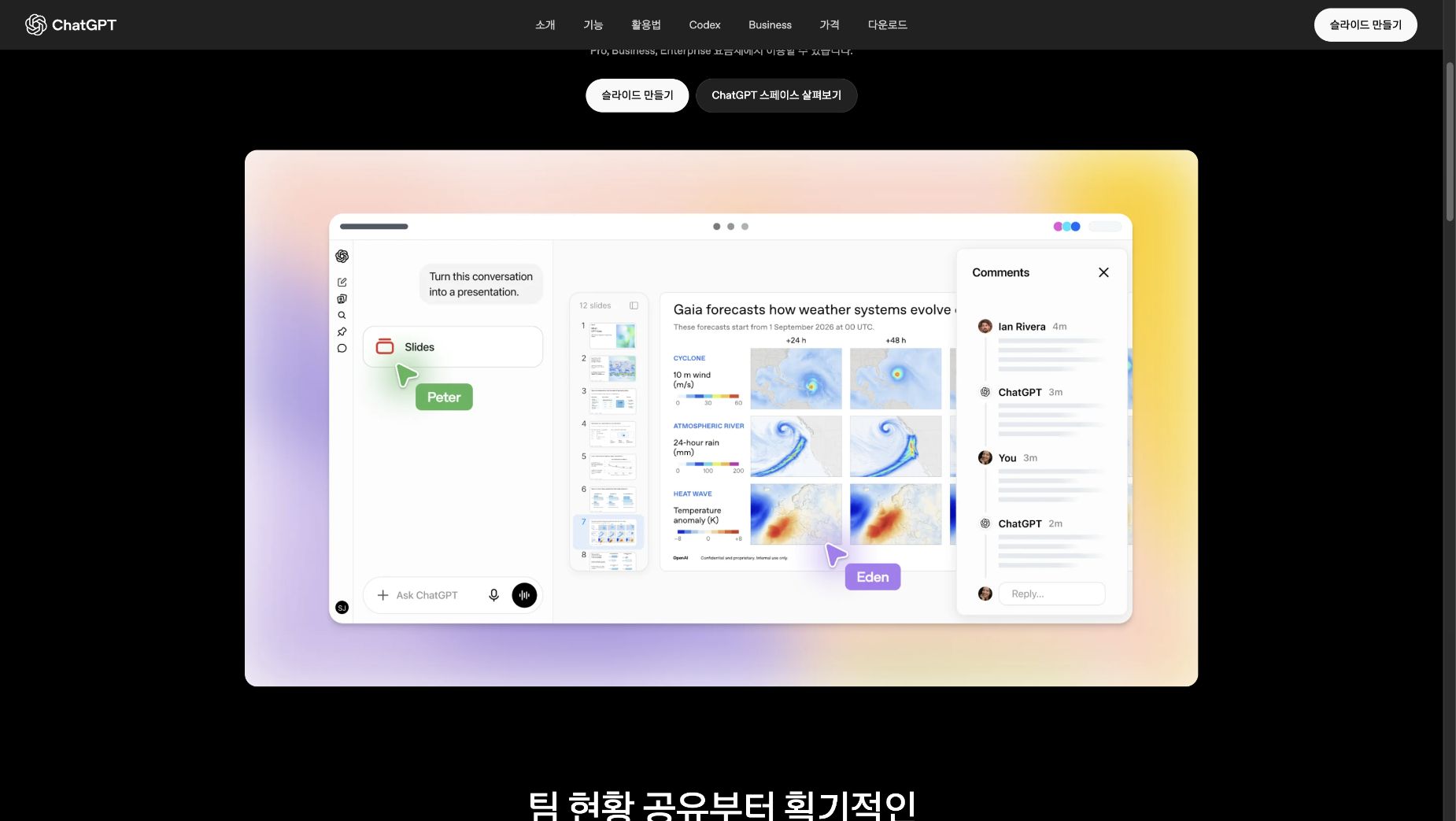
What is ChatGPT Slides?
ChatGPT Slides is a feature for creating and editing presentations within Spaces in ChatGPT. Think of Spaces as a workspace where you can collect and collaborate on documents, slides, and files.
For example, you can attach a long business report and ask it to generate slides for a team meeting. It doesn't just summarize text—you can open the resulting material and manually edit text, images, shapes, tables, and charts.
You can also provide existing presentations or templates to help ChatGPT reference the style and layout. If your company has standard slide decks, this saves you the trouble of explaining the design from scratch.
How to request slides from a report
You can start by simply saying, "Make a PPT from this report," but providing context like the target audience and what to emphasize will help you get better results.
Attach the report and try a prompt like this:
Using the attached report, create 6 slides in a Space for a team meeting.
The audience is team members who are hearing about the project progress for the first time. Focus on current progress, key issues, and next steps.
Keep only one core message per slide, and do not invent any numbers that aren't in the report. Mark anything that needs verification separately.
The key here is the audience, length, and emphasis. The structure of a presentation to update your team will naturally differ from one requesting a decision from executives.
If you have an existing presentation for reference, you can also add, "Please use the color scheme and layout of the attached document as a guide."
Don't aim for perfection on the first try
If the initial slides aren't quite right, focus on specific areas for improvement rather than asking to regenerate the whole thing.
For example:
The sentence on slide 3 is too long. Keep the main point but trim it down to three lines or less.
Change the final slide into a format that makes it easy to check next week's tasks and assignees. If the assignee is not in the report, don't invent one; mark it as 'TBD'.
On the web or desktop, you can edit elements directly or select specific items to ask ChatGPT to modify them. On mobile, while you can create and view slides through conversation, you'll need the web or desktop app for direct editing.
Personally, I find it much easier to verify the content and order first, then polish the design. If the content changes, you might end up having to fix the layout again anyway! 😄
Collaborating with teammates and exporting to PPT or PDF
If you share the document and grant edit permissions, your team can work on the same slides together. You can also leave comments or mention ChatGPT to request edits.
When presenting, you can go right ahead while viewing presenter notes in ChatGPT. If you need a file, you can export it as PowerPoint (.pptx), PDF, or Google Slides on the web. The desktop app also provides an option to open the file directly in PowerPoint or Keynote if they are installed.
However, it’s best to open and check the file before sharing it. Be sure to verify these three things:
- Numbers and sources: Check if the figures, units, and dates from the original report are accurate.
- Context: Ensure no essential premises were left out or exaggerated during summarization.
- Layout: Check for any cut-off text or awkwardly reformatted tables and charts.
Because sentences are shorter in presentations than in reports, a single wrong number or missing condition can be much more noticeable.
Is it available on my account?
To use ChatGPT Slides, you need an account with Spaces enabled. However, the official start guide I checked didn't list all the plans that support Slides. It's a good idea to check your account and workspace settings first.
If your Windows desktop app generates a PowerPoint file instead of the collaborative Slides, OpenAI recommends working in a Space using ChatGPT on the web or cloud mode.
Rather than expecting a perfect presentation right out of the gate, try using it as a way to create a draft from a report that you then refine manually. It can be especially helpful for those who regularly create similar meeting materials, helping you skip that tedious "staring at a blank slide" phase.