
Haram@haram
How to Use AI Functions in Google Sheets: Filling Tables and Checking Sources per Cell
Manually looking up and adding website addresses for a list of company names can be quite a chore. While having AI fill them in would be convenient, you probably also want to know where that information came from.
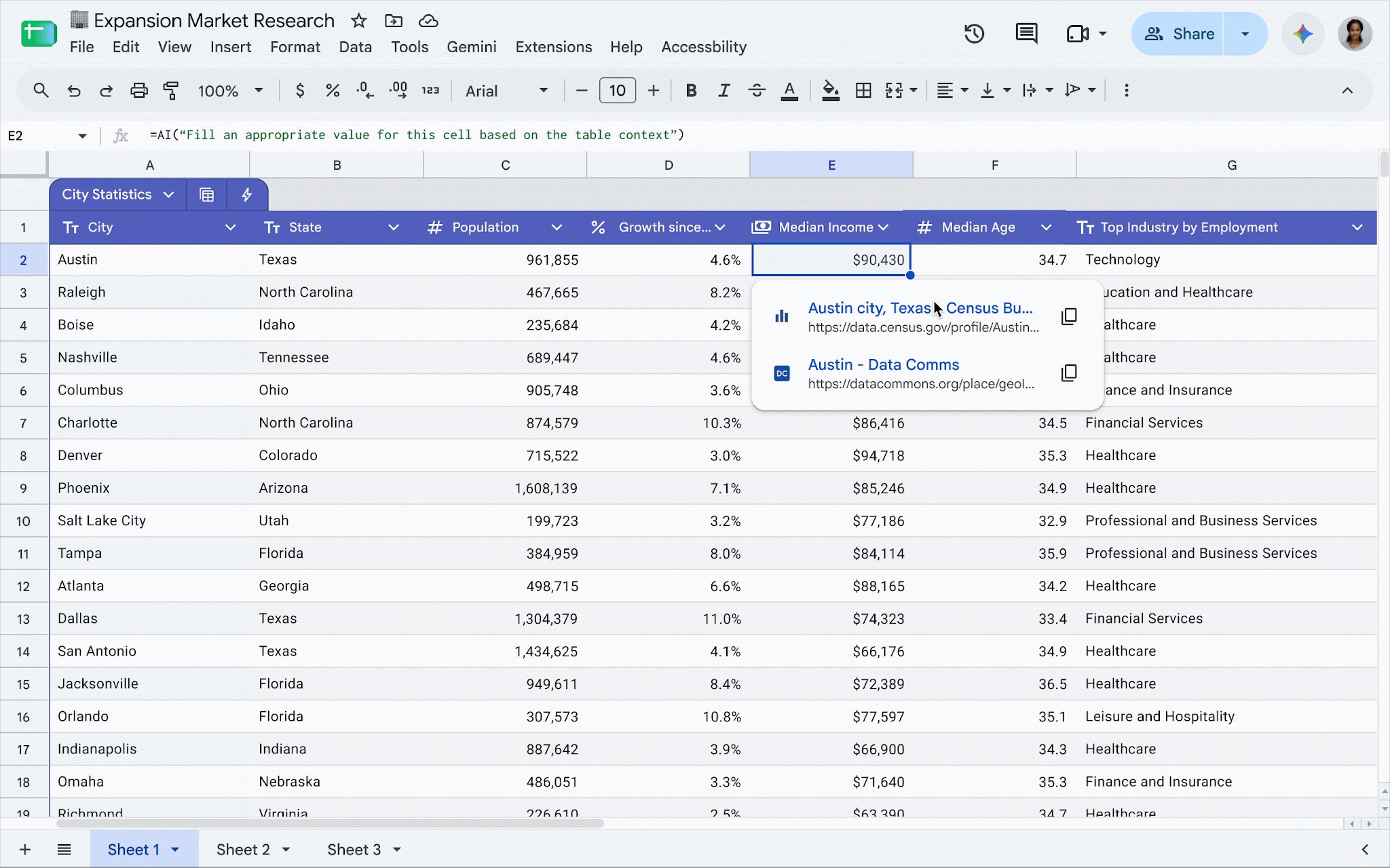
On October 28, Google announced an update to display per-cell web sources for AI function results in Google Sheets. This feature allows you to examine the web sources used to generate specific cell values.
Try this request in your table
If you have a company name in cell A2, you can enter the prompt in the adjacent cell like this:
=AI("이 회사의 공식 홈페이지 주소를 찾아줘. 찾지 못하면 확인 필요라고 써줘", A2)
Select the cell with the AI function and click 'Generate and insert'. Click on the result cell, hover over the content, and select 'Source' to view the web sources used. Be sure to customize the prompt to match the information you're looking for.
This can be used for more than just web searches; it also works for summarizing inquiries or classifying data. However, keep in mind that the function doesn't automatically read your entire sheet or other files in Drive. You need to specify the range of cells you want it to reference.
Even with sources, verification is necessary
Since the AI might reference companies with similar names or outdated pages, please open the links to verify that the information is accurate for the company in question. If you need the latest information, you can use 'Refresh and insert' to regenerate the results.
You will need a qualifying plan, such as Google AI Premium or Workspace Business Standard/Plus. Availability may vary depending on your account's admin settings and rollout status. Korean is included in the supported languages for AI functions.
Rather than assigning the entire table at once, it's better to verify the results and sources for a few rows first before scaling up. This way, you reduce your fill time while keeping the evidence you need close at hand.