Haram@haram
A Guide to GPT-6.1 Terra: Usage, Pricing, and How It Compares to Sol and Astra
From refining proposal drafts and reading dashboard screens to creating application drafts based on various materials—there are many tasks you can now delegate to AI. But once you open the model list, the first question is often: which one should I choose?
GPT-6.1 Terra is a model introduced by OpenAI that focuses on writing, image understanding, and computer-based tasks. It is positioned as a fast and efficient option for work-related tasks.
So, how does choosing Terra differ from the more commonly heard Sol or Astra? I’ve compiled everything you need to know, from where to use it to its pricing and practical tasks you can try.
Where can you use GPT-6.1 Terra?
First, this can be a little confusing. Terra is not a standard Chat model, but a model used in ChatGPT Work and Codex.
According to OpenAI's official guide, it is available in Work and Codex for Plus, Pro, Business, Enterprise, and Edu plans. For corporate or school accounts, availability may vary depending on workspace support and administrator settings.
In the ChatGPT desktop app or on the Work web interface, you can select GPT-6.1 Terra by opening Advanced in the model selection area. It is also supported in the Work mobile app. If you don't see the model, check your current interface, account, and workspace settings first.
Please note that tasks requiring direct manipulation of a browser or computer screen do not work simply by selecting the model; you also need the appropriate settings and access permissions enabled.
What tasks is Terra good for?
Looking at the use cases introduced by OpenAI, Terra is a great first choice for tasks involving both text and screen interaction.
- Drafting and editing proposals: Creating drafts based on provided materials or refining text for better readability
- Understanding screens and charts: Analyzing dashboard screenshots to summarize items and trends
- Comparing product materials: Comparing product photos with lists to identify items that need verification
- Assisting with repetitive app tasks: Organizing input data based on references or creating application drafts
For example, you can attach dashboard screens from last month and this month and ask it to "compare the same metrics and point out significant changes." Adding a condition like "do not guess hard-to-read numbers, mark them for review instead" will make it easier to find the specific areas you need to double-check later.
However, these strengths represent the direction OpenAI intended for the model; they are not based on my own direct performance testing of all three models. It is always a good idea to cross-verify important numbers or conditions in images against the original source.
Terra, Sol, or Astra—which model should you choose?
Based on OpenAI's model guidance, here is how you can apply their recommendations to your daily tasks.
For example, you could start with Terra for refining a proposal. If you're building an execution plan by reviewing meeting minutes, schedules, and planning documents together, it’s worth comparing with Sol. Astra might be the candidate if you need to analyze pros and cons of different proposals and support important decision-making.
Of course, this is just a starting point, not a formula that guarantees results. Even for the same task, the experience can vary depending on how complex your data is and how much judgment is required.
Pro Tip! If you have a routine task, choose one familiar data set and try the same prompt on two different models. Don't just look at whether the response sounds good; compare whether any conditions were missed and how much time it took to correct the output. This will make it much easier to choose the model that fits your workflow.
Subscription and API costs should be considered separately
When looking at pricing, you first need to separate ChatGPT subscriptions from API usage.
If you are using ChatGPT Work or Codex with a subscription account, you should check the usage limits and credit terms included in your plan. On the other hand, if you are using the API for services or automation, per-token API pricing applies. The API has a separate billing system, and eligible Pro/Business subscribers can receive API credit benefits by enabling it separately.
As of October 31, the official pricing in USD is as follows, according to the official pricing guide.
- Plus: $20 per month
- Pro: $100, $200, or $500 per month options
- Business: 2+ users, $20 per user/month with annual billing or $25 per user/month with monthly billing
- Enterprise/Edu: Contact for pricing
Actual billing terms may vary by region and taxes, so please double-check on the payment screen. Work and Codex share usage limits, and actual caps depend on the model, task size, and inference settings.
How much cheaper is Terra when using the API?
Below is the OpenAI API pricing table (Standard rates) as of October 31. These are for short contexts, and prices are in USD per 1 million tokens.Standard base rates.
Input refers to data sent to the model, and output refers to content generated by the model. Cached Input is the rate applied when reusing previous inputs that meet the criteria. The cost of initially writing the cache must be calculated separately.
Let's do a quick calculation. Assuming you used 10,000 tokens of input and 2,000 tokens of billable output without using cache:
- Terra: approx. $0.02
- Sol: approx. $0.04
- Astra: approx. $0.20
For Terra, this is $0.01 for input costs plus $0.01 for output. This is an example based on table rates, not actual test results, and excludes extra costs like tool usage. Also, it's difficult to judge the actual charged tokens based solely on the length of the response you see on the screen.
Check for surcharges when processing long documents
When you send a request to the Terra API that exceeds 272,000 input tokens, a higher unit price is applied to the entire request, not just the excess portion. Input and cache-related rates double, and output rates increase by 1.5x.
The API rate for Fast mode is also twice the Standard rate. If you feed in multiple long documents at once or change speed settings, the actual cost may differ from what you calculate using the basic price sheet.
These surcharges and rates are for API usage. Do not assume this price sheet applies directly to your ChatGPT subscription usage.
Technical specifications for the API
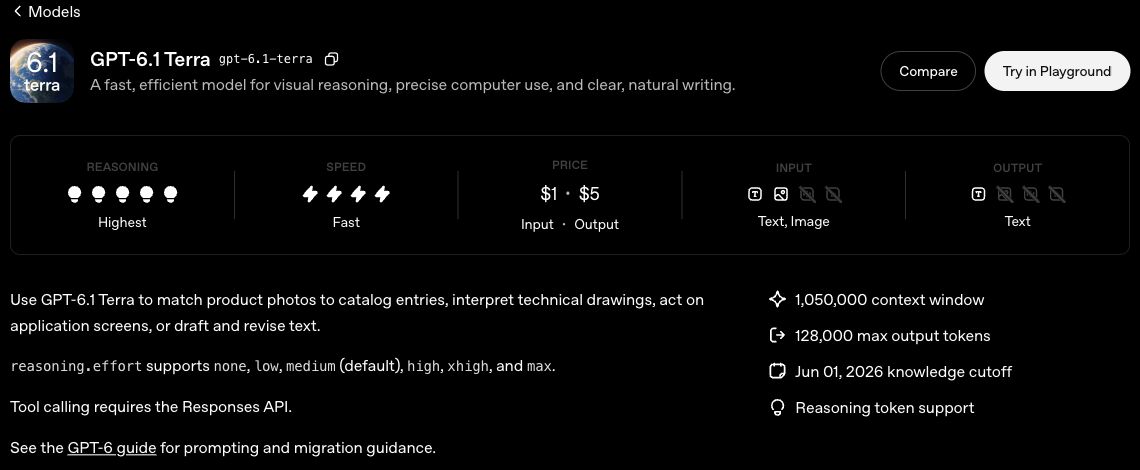
Let's touch on some technical details. The model name for the API is gpt-6.1-terra.
According to official model documentation, the context window is 1.05 million tokens, and the maximum output is 128,000 tokens. The context window can be thought of as the total amount of context the model handles in a single request. Note that tokens are different from character counts, and these numbers should not be equated directly to actual file upload limits on the ChatGPT interface.
The knowledge cutoff is June 1, 2026. Instead of assuming the model always knows news after that date, it's better to provide relevant reference materials or search results if the latest information is important.
The model itself receives text and images as input and outputs text. It does not support direct audio/video I/O. Using an image generation tool is also different from the Terra model itself outputting images.
Inference effort has 6 levels from none to max, and the API default is medium. You can try increasing the inference level for complex requests, but keep in mind that this may impact speed and usage costs, so adjust it according to your task.
3 Prompts You Can Use Right Away
The phrasing below is not based on actual test results but serves as an example of requests you can adapt to your own materials.
1. Comparing Dashboard Screens
Compare the same items across the two attached screens and summarize 3 significant changes. Include the item names and values as evidence. For values that are difficult to read, do not guess; mark them as 'Review Needed'.
2. Refining Proposal Text
Refine this proposal so that even a customer reading it for the first time can easily understand it. Maintain the facts, prices, schedules, and scope of promises as they are. If parts are ambiguous, do not fill them in arbitrarily; summarize them separately as questions for verification.
3. Creating Application Drafts
Create an application draft using only the provided materials. Leave missing information blank and summarize the items I need to review. Do not submit or make payments; prepare only a draft that I can review.
Especially when working in an app or on a website, like in the third example, it's good to clarify how far the process should go. After all, drafting an application and final submission are different tasks.
Is the cheapest model the best choice for me?
Looking at base API rates, Terra is the most affordable of the three. That is why it is a great model to try first for writing or tasks that involve reviewing and summarizing data.
However, in real-world work, you must also account for the human time spent verifying and correcting the output beyond just the model costs. If a cheaper initial response requires finding missed conditions and several rounds of correction, another model might be more convenient in the long run.
Ultimately, the fastest way is to choose one frequent task and compare them yourself. Give them the same data and request, then look at the accuracy of the result, what information was missed, and how long it took to correct. How well it fits your specific work is more important than the model name.