
Haram@haram
How to Use Adobe Firefly Music Generation: Creating BGM to Match Video Length
Ever finish editing a video, only to spend even longer picking the background music? It’s frustrating when the mood is perfect but the track is too short, or the song is great but completely drowns out the dialogue.
Adobe Firefly's Generate music is a feature that lets you create music by specifying the desired mood and length. If you upload a video, it analyzes the content and suggests prompts for fitting music. You can use those as-is or tweak them to get exactly what you want.
It’s worth checking out if you need BGM for your vlogs or short product showcase videos.
Steps to create video-synced music in Firefly
1. Open Generate music and upload your video
On the Firefly website, select Audio → Generate music. To create music tailored to your video, click Upload video to provide a reference.
Once uploaded, Firefly analyzes the content and suggests the mood and style. If any parts don’t match your edit, you can modify them manually before generating.
When uploading videos from mobile, there are conditions: MOV or MP4 format, under 100MB, and within 5 minutes. Make sure to select a video you have the rights to use.
2. Choose your mood and style
The English categories might feel a bit unfamiliar at first, but you only need to remember three things:
- Vibe: The overall mood of the music
- Style: Musical style such as genre or instruments
- Purpose: Intended use for the music
For example, for a calm walking video, you could select calm, a style of acoustic, and video background music as the purpose.
According to Adobe’s current guidance, text prompts only support English. If you have trouble writing long sentences in English, start by reviewing the suggested tags and modifying them word by word.
3. Set speed, length, and generate
Energy determines how calm or energetic the music is, and Tempo sets the speed. Both can be selected from options like Low/Medium/High or Slow/Medium/Fast.
Duration lets you adjust the music length. If you’ve uploaded a video, it defaults to the video's length, but you can manually lengthen or shorten it as needed.
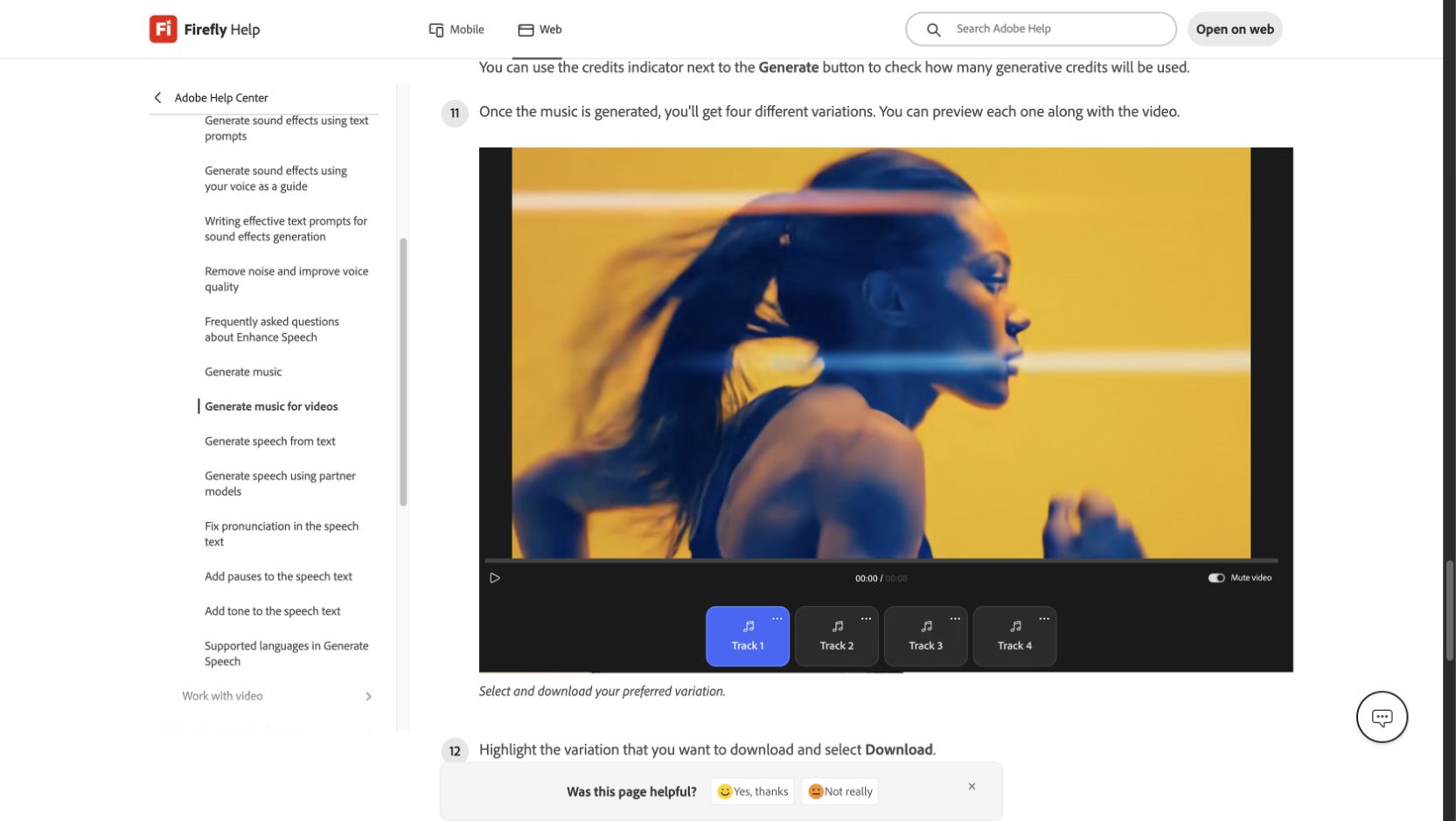
Once configured, hit Generate to create four music candidates. You can play each with your video and pick your favorite.
What if it doesn’t sound right?
Rather than trying to get it perfect on the first try, it’s easier to listen once and then tweak one or two settings.
For instance, if the acoustic music for your walking video sounds too busy, try lowering the Energy or slowing down the Tempo before changing all your style tags.
Adobe also notes that mixing contradictory expressions can lead to unexpected results. If you’ve combined tags with vastly different directions, like calm and heavy metal, try streamlining them toward the mood you actually want.
Also, if there is dialogue in the video, don’t just listen to the music in isolation—try playing it back with the speech. It’s surprisingly common for a track to sound great on its own but make the voices hard to hear once applied to the video 😂
Can I create music without a video?
Yes. You can generate music by simply choosing the mood, style, and purpose without uploading a video.
There is a difference when downloading. According to Adobe, music generated without a video is downloaded as a WAV file, whereas if you worked with an uploaded video, it is downloaded in the same MOV or MP4 format as your uploaded video.
If you plan to handle music separately in video editing software, it’s good to decide on your workflow in advance.
How much does it cost to generate music?
As of the Adobe credit guide checked on November 1st, Generate music uses 20 credits per minute.
The US individual Firefly Standard plan provides 2,000 monthly credits for US$9.99/month. Note that image, other video, and audio generation features share the same credit pool, so this isn't an unlimited pass just for music.
The credit cost for your task is displayed next to the generate button. If you plan to regenerate multiple times, check the deduction amount before clicking. It is also recommended to check local pricing and account-specific terms on your actual screen.
The ability to listen to and compare candidates against your video duration seems very convenient. In the end, it’s best to personally listen to the music's start and end points, and check the balance against the dialogue in your video before finalizing.