Haram@haram
How to Use Canva Brush: Editing Card News and Presentations with AI
Finished most of your presentation, only to realize you need to change the title color on every page? Manually flipping through every slide to fix it is more time-consuming than you'd think. It's the same story when you've created card news and need to resize it for Instagram.
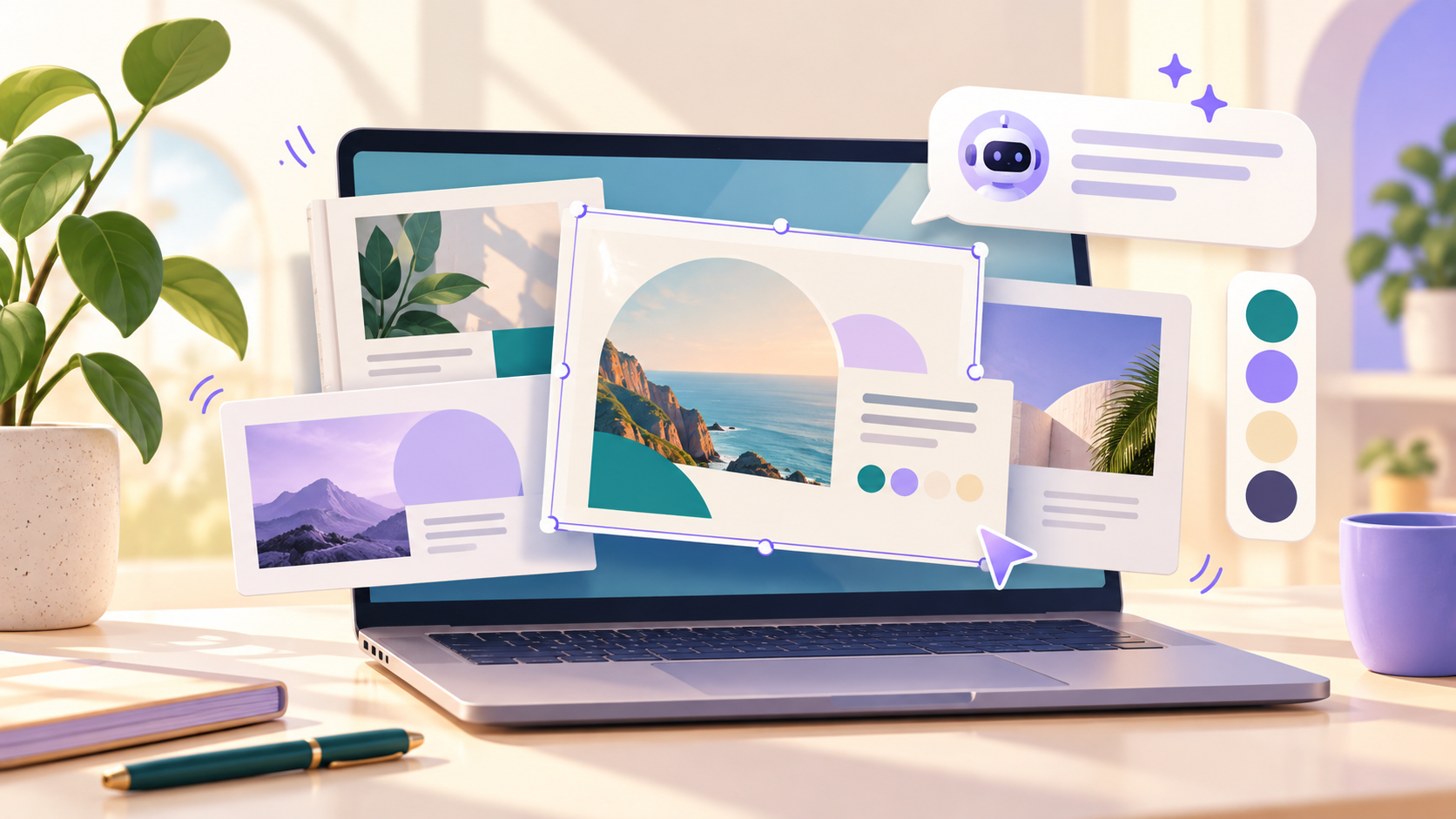
Canva Brush, unveiled on October 29, is an AI model that lets you request design edits using natural language. Rather than just creating images from a blank canvas, it’s worth paying attention to for tasks involving tweaking existing designs or repurposing them into different formats.Canva Brush is an AI model that lets you request design edits using natural language. Rather than just creating images from a blank canvas, it’s worth paying attention to for tasks involving tweaking existing designs or repurposing them into different formats.
What makes Canva Brush different?
Brush is a model designed to analyze the layout and components of a design and modify them based on your requests. Canva highlighted use cases ranging from editing a single line of text to updating an entire presentation to match a consistent style.
The name might be confusing given the similarly named Canva Craft that came out around the same time. Based on Canva's explanation, Craft is an image generation model, while Brush focuses on modifying and polishing designs.
You can still adjust the text, colors, and layout manually in the Canva editor after the edits are made. It's a relief to know you don't have to stick with the AI's output exactly as is.
How to Use Canva Brush: Start by Opening Your Existing Design
Currently, Canva notes that Canva Pro users can use Brush for supported AI design editing tasks. They plan to expand access in the future.
Getting started is easy.
1. Open the design you want to edit in the Canva editor, or attach/link an existing design to Canva AI.
2. Select Brush from the Canva AI model selection list.
3. Describe your request, specifying both the parts you want to change and the parts you want to keep as they are.
4. Review the results, and make further requests or manual edits in the editor if needed.
If you don't see Brush on your screen, check your account eligibility and current rollout scope. This feature is not explicitly available to all free accounts.
Try it for these scenarios: 3 ready-to-use prompts
Standardizing titles across multiple pages
"Change the title color to dark navy on all pages of this presentation. Please do not change the body text or images."
When modifying multiple pages at once, it's good to specify not only "what to change" but also "what to keep." After editing, check for any missing titles or text cut-offs.
Converting a presentation for social media
"Reformat the key points of this presentation into an Instagram card news style. Keep the numbers and dates, and let me know if any text becomes too small."
Transferring content directly from a presentation to a smaller screen often results in font sizes that are too small. Set conditions to maintain key content and original figures, then check the final ratio and readability.
Changing the vibe of an existing design
"Change this event flyer design to have a calm spring vibe. Keep the event name, date, and location as they are, but adjust the background color and decorative elements."
After changing colors or overall mood, always double-check that important information like dates and locations hasn't been altered. Even if it looks good, it's safer to compare it against the original.
Things to know before you start
In introducing this first version, Canva mentioned that they are working on Brand Kit support, reference material attachments, and improved layout handling for image-heavy designs. It's worth noting the distinction between attaching or linking an existing design to Canva AI and using separate reference documents to guide design edits.
Canva also claims that general editing tasks are up to 69% faster and 46% more cost-effective compared to previous design agents. Please note that these are comparison results stated by Canva. This does not mean all tasks will be equally faster or that subscription fees will be reduced by that amount.
Even if AI cleans up the initial draft, the final check should always be done by a human. Pay close attention to numbers, proper nouns, text cut-offs, and any unintended changes to images.
I’m curious how much effort Brush will save when we need to adapt existing materials to different formats rather than starting from scratch. Trying some short, simple edit requests on a copy of your design is a great way to get the feel of it without any pressure.